






So, you want to publish an article on LinkedIn? It’s surprisingly simple. Just head to your homepage, and right below the box where you’d normally start a post, you'll see a button that says "Write article". Click that, and you're in. This takes you to a full-blown editor where you can add your headline, a slick cover image, and all your formatted text before you hit publish.
Why LinkedIn Articles Trump Regular Posts for Authority
Before we get into the nitty-gritty of formatting and publishing, let's talk strategy. It's a question I get all the time: "Should I write an article or just make a post?" While a standard post is perfect for quick updates and sparking conversation, a LinkedIn Article is a completely different beast. Think of it as the difference between a quick chat in the hallway and delivering a keynote speech.
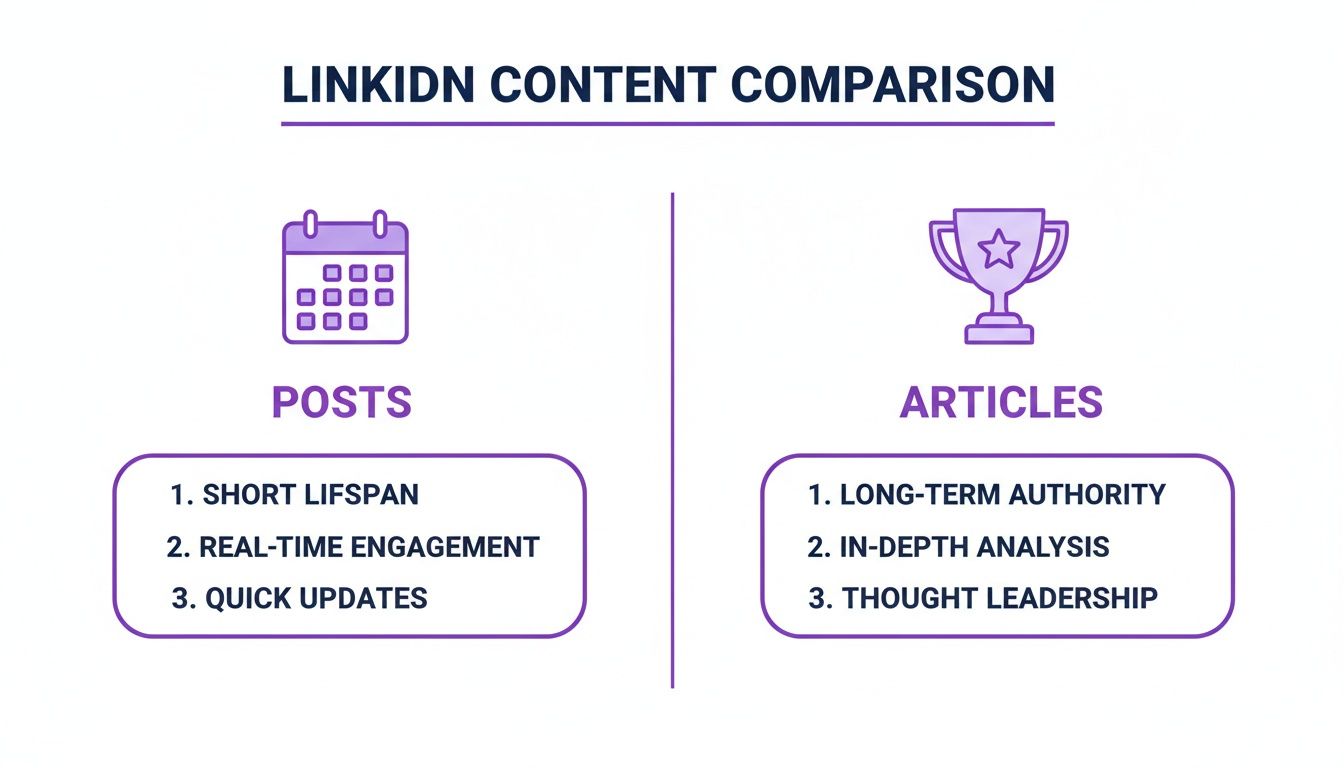
Standard posts are fleeting. They have a notoriously short lifespan, often vanishing from the feed within 24-48 hours. Articles, on the other hand, are built to last. They get indexed by search engines and live on your profile forever, becoming long-term assets that can pull in views, followers, and opportunities for months—or even years—to come.
The Durability Factor
Every article you publish becomes a permanent fixture of your professional brand online. This content works for you 24/7, showing off your expertise to anyone who stumbles upon your profile.
- Long-Term Discoverability: Unlike posts that get buried in the feed, articles can actually rank in Google searches. This lets you ride the coattails of LinkedIn’s massive domain authority.
- Credibility Building: Let's be honest, a well-researched, in-depth article just screams expertise in a way a 200-word post never could. It shows you've put in the work.
- Attracting Quality Connections: Serious professionals and potential clients are looking for substance. They’re far more likely to follow and engage with someone who provides real, substantial value, and articles are the perfect way to deliver it.
To put it in perspective, let's break down the key differences between a quick post and a full-fledged article.
LinkedIn Posts vs Articles at a Glance
This table gives you a quick snapshot of when to use each format.
| Feature | Standard LinkedIn Post | LinkedIn Article |
|---|---|---|
| Best For | Quick updates, conversation starters, sharing links | In-depth analysis, thought leadership, evergreen content |
| Lifespan | Short (24-48 hours in the feed) | Permanent, lives on your profile indefinitely |
| SEO Impact | Minimal | High; indexed by Google and discoverable via search |
| Formatting | Limited (bold, italics, lists, but no headers or images) | Full editor (headers, images, video embeds, blockquotes) |
| Perception | Casual, conversational | Authoritative, professional, credible |
The takeaway is pretty clear: posts generate a quick, temporary buzz, while articles are what you use to build unshakable professional credibility over the long haul.
Creating a Content Legacy
Think of publishing articles as an investment in your personal or company brand. Each piece you write adds to a growing library of your expertise, solidifying your reputation as a go-to voice in your industry. This is a core part of what it means to build a genuine LinkedIn presence—https://postsyncer.com/blog/building-a-genuine-linkedin-presence-strategies-for-meaningful-growth. You stop being just another connection and start becoming an active, influential voice.
Understanding how articles fit into the bigger picture is key to developing a winning LinkedIn strategy for business growth. They aren't just one-off pieces of content; they're foundational pillars of your authority.
By consistently publishing high-value articles, you're not just sharing information. You are creating a durable portfolio of your knowledge that pays dividends in credibility and influence over time.
Ultimately, articles give you the power to control your professional narrative and prove your expertise in a way no other feature on LinkedIn can touch.
Developing an Article Your Network Will Actually Read
Before you even touch the "Write article" button, the real work starts with one great idea. A killer article solves a real problem, answers a burning question, or offers a fresh take that makes people in your network actually stop scrolling.
Without that solid foundation, even the most beautifully formatted piece is going to fall flat.
So, where do you find these ideas? Listen. Seriously, just pay attention to the conversations happening around you. The questions your clients, colleagues, and connections are always asking? That’s gold.
That one question you’ve answered a dozen times in emails or on calls? That’s your first article, right there.
Another fantastic source is your own activity. Did a short, simple post get way more engagement than usual? Your audience just told you exactly what they want to hear more about. Now's your chance to expand on it, add some data, throw in a case study, and turn that little spark into a full-blown guide.
Structuring Your Article for Impact
Once you’ve got your core idea, fight the urge to just start typing. A little bit of structure goes a long, long way in keeping your reader hooked from the headline all the way to your final sentence.
I find it helps to think of your article in three simple parts:
- The Hook: Your intro has one job: grab the reader's attention immediately. Kick things off with a surprising statistic, a relatable story, or a bold claim that challenges a common belief in your industry.
- The Body: This is where you deliver the goods. Break down your main point into 3-5 key takeaways, giving each one its own clear subheading. Use short paragraphs, bullet points, and images to make the information scannable and easy to digest.
- The Call to Action (CTA): Never leave your reader hanging. End your article with a clear next step. Ask a thought-provoking question to get the comments rolling, invite them to connect, or point them toward your website for more info.
The goal isn't just to broadcast information; it's to start a conversation. An article that ends with a question like, "What's the biggest challenge you've faced with this?" will always get more engagement than one that just fades out.
Finding Your Authentic Voice
Your unique perspective is your superpower on LinkedIn. It’s fine to see what others are writing about, but your article needs to sound like you. Your personality and real-world expertise are what will make your content stick.
If you get stuck trying to find your "writer's voice," try this trick: record yourself talking about the topic for five minutes. Just talk it out like you're explaining it to a friend. Then, transcribe that recording and use it as your first draft. It’s a simple way to capture your natural tone and make your writing feel more genuine.
For a deeper dive into this, mastering the basics of copywriting for social media is an invaluable skill that can help you find that perfect voice. You can learn more about that here: https://postsyncer.com/blog/copywriting-for-social-media
And if you need a little creative spark to get going, exploring some powerful content generation ideas can help you find fresh angles on familiar topics. This will help you post articles on LinkedIn that not only showcase your knowledge but also build a real connection with your readers.
Getting Around the LinkedIn Publishing Interface
Once you've nailed down your idea and you're ready to start writing, it's time to get familiar with LinkedIn's publishing tool. The good news is that it’s designed to be incredibly straightforward. LinkedIn wants you to focus on your content, not wrestle with confusing software. The entire point is to get your ideas from a simple draft into a polished, professional-looking article without any technical drama.
Getting to the publisher is your first easy win. From your LinkedIn homepage, glance at the top where you normally create a post. Right below the text box, you’ll spot a few icons, including "Media," "Event," and "Write article." Just click "Write article," and you're in. LinkedIn will whisk you away to a clean, dedicated editor—a focused space ready for your content.
This interface is where the magic happens. Think of it as your digital canvas, giving you all the tools you need to structure your thoughts and make your article a breeze for people to read.
Mastering the Editor and Formatting Tools
Right at the top, you’ll see a prompt for a cover image. Honestly, this is non-negotiable if you want your article to look professional. The ideal size is 700x400 pixels, and it should give a visual hint about your article's topic, catching the eye of someone scrolling their feed. Whatever you do, don't skip this step. An article without a cover image just looks unfinished.
Next up is your headline, followed by the main body where you'll either paste your draft or start writing from scratch. LinkedIn’s formatting toolbar is simple but has everything you actually need to make your article readable.
This screenshot shows the basic formatting toolbar you'll be working with.
As you can see, you’ve got options for headings, bolding, lists, and quotes—all essential for breaking up long stretches of text.
To make your article scannable and keep readers hooked, you’ll want to use these tools with a bit of strategy:
- Headings (H1, H2): These create a clear visual hierarchy. Use H1 for your main section titles and H2 for the sub-points within them. It’s a simple way to help readers skim and jump to the parts that interest them most.
- Blockquotes: I love using these. They’re perfect for pulling out a powerful quote, a key takeaway, or an important statistic. They create a visual break and immediately draw the reader's eye.
- Lists: Bulleted and numbered lists are your best friends for explaining steps, summarizing benefits, or just breaking down complex ideas into bite-sized pieces.
Getting these basic formatting elements right is a huge part of good presentation. If you want even more control, you can use a dedicated LinkedIn post formatter to get your text looking perfect before you even paste it into the editor.
Adding Dynamic and Interactive Content
This is a trick many people miss. Beyond just text, the LinkedIn publisher lets you embed rich media right into your article, which is a total game-changer for engagement. When you start a new line in the editor, look for a small icon that pops up on the left side.
Embedding rich media is one of the fastest ways to turn a simple text-based article into an interactive, genuinely engaging experience.
Clicking that little icon opens up a menu where you can embed all sorts of cool stuff:
- Videos: Just paste a link from YouTube or Vimeo, and the video player will appear directly in your article.
- Slides: If you have a presentation on Slideshare, you can embed it to share detailed visuals or data.
- Images: Don't just rely on the cover image. Add supporting graphics, charts, or infographics throughout your article to illustrate your points.
- Links: You can also embed rich links that show a nice preview of another webpage.
By sprinkling these elements throughout your content, you create a much more dynamic and valuable piece that will hold a reader's attention for way longer than a wall of text ever could.
Optimizing Your Article for Discovery and Engagement

That feeling when you hit "publish" is fantastic, but your work isn't quite over. Publishing is just the starting line; now the real race begins to get your article seen, read, and shared.
A few strategic tweaks before you go live can be the difference between a piece that vanishes into the digital ether and one that becomes a lasting asset for you and your brand.
It all starts with the headline. Think of it as the gatekeeper to your content. A weak headline means that even the most brilliant article will go unread. Your goal is to create something compelling for a human reader that also plays well with LinkedIn's search algorithm.
Crafting a Magnetic Headline
A great headline strikes a delicate balance. It needs to be specific enough to signal value but intriguing enough to spark real curiosity.
For example, a generic title like "Tips for Project Management" is easy to scroll past. But something benefit-driven like, "The 5-Minute Framework That Cut Our Project Revisions by 50%"? That gets the click.
Here are a few headline formulas that I've seen perform well time and time again:
- The "How-To" Headline: "How to Post Articles on LinkedIn for Maximum Engagement"
- The List-Based Headline: "7 Common Mistakes to Avoid When Publishing on LinkedIn"
- The Question Headline: "Are You Making These Costly LinkedIn Article Errors?"
Notice how each one promises a clear solution or a valuable insight. They tell the reader exactly what they stand to gain by clicking through. A powerful headline is probably the single most important lever you can pull to drive those initial clicks.
Keywords and Hashtags That Expand Your Reach
Once you've nailed the headline, it's time to think about discovery. How will people who aren't already following you find this amazing piece of content? This is where keywords and hashtags come in.
First, think about the terms your ideal reader would actually type into a search bar. These are your keywords. Weave them naturally into your headline, subheadings, and the body of your text. Don't ever force them in; the goal is always to write for humans first and search algorithms second.
When you're ready to publish, LinkedIn will prompt you to add hashtags. This is your chance to categorize your article and push it into relevant content feeds.
Don’t just guess at hashtags. Use a mix of broad, high-volume tags (like #Marketing or #Leadership) and more niche, specific tags (like #ContentStrategy or #B2BMarketing) to maximize your visibility. My sweet spot is usually 3 to 5 highly relevant hashtags.
Driving Action with a Clear CTA
Finally, every great article should guide the reader toward a next step. Without a clear call-to-action (CTA), you’re leaving valuable engagement on the table. Your CTA doesn't have to be a hard sell—it's just about continuing the conversation.
Here are some effective CTAs you can adapt for your own use:
- Ask a question: "What's the biggest challenge you face with content creation? Let me know in the comments."
- Invite a connection: "If you found this helpful, I'd love to connect with you here on LinkedIn."
- Offer more value: "For a deeper dive, check out the free guide on my website."
By optimizing these key elements—headline, keywords, hashtags, and CTA—you give your article the best possible chance to be discovered, read, and acted upon. This is how you turn all that hard work into a powerful engine for engagement and professional growth.
Get Your Article Seen and Measure What Matters
Let’s be real for a second. Hitting “publish” on your LinkedIn article feels great, but it’s just the starting line. A brilliant article with no promotion plan is like a masterpiece hidden in an attic—valuable, but nobody knows it exists. To get real traction, you need a smart plan to create some initial buzz and keep that momentum rolling.
Your very first move? Craft a dedicated announcement post. Don't just drop the link with a lazy "check out my new article." That’s a missed opportunity. Instead, write a compelling, standalone post that acts as a hook. Pull out a surprising statistic, a controversial point, or a key takeaway from your article to get a conversation started right there in the feed.
Always end your announcement post with a question related to your article's topic. This is a simple but powerful trick. It encourages comments on the post itself, which signals to the LinkedIn algorithm that your content is engaging. The result? A bigger reach for both the post and your new article.
Think Beyond a Single Announcement
To give your article a long and healthy life, you have to think beyond that first announcement. The goal is to create multiple paths that all lead people back to your main piece. This is where a multi-post strategy is a game-changer.
- Create Spin-Off Content: Slice and dice your article. Turn each main section into a smaller, bite-sized post. You could pull out a key point for a text-only post, create a carousel from a list, or even film a short video discussing one of the core ideas.
- Share Across Other Channels: Your audience isn't only on LinkedIn. Promote your article on platforms like X (formerly Twitter), in your company’s Slack channels, or in your email newsletter. Just be sure to tweak the message for each audience, explaining why they should care.
- Get Your Team Involved: Ask your colleagues to share the article with their networks. The easier you make it, the more likely they are to help. Give them some pre-written copy they can use or adapt. A single share from a well-connected teammate can open up your work to a whole new world of readers.
The secret to great visibility isn't just publishing one epic piece of content. It's about consistently promoting that content in different ways. Think of your article as the hub and all your smaller posts as the spokes, constantly driving traffic back to the center.
Speaking of consistency, posting frequency makes a huge difference. The data is pretty clear: jumping from one post a week to 6-10 posts can land you over 5,000 extra impressions per post. The real sweet spot? Hitting 11+ posts per week, which can score you a massive +17,000 more impressions per post. This is exactly why breaking down your article into smaller, promotable chunks is so critical for success. You can dive deeper into these kinds of numbers in our guide to LinkedIn content strategies that drive results.
See Who's Reading with Article Analytics
Once your promotion engine is running, it's time to pop the hood and see what's working. LinkedIn gives you built-in analytics for every article you publish, offering a goldmine of information about your audience and performance.
You can find these analytics by going to your article and simply clicking on the view count. What you’ll see is a breakdown of who’s reading your stuff—their job titles, industries, companies, and even their locations. This data is pure gold. It tells you if you're actually reaching your target audience. If you wrote an article for senior marketing managers and see that’s who’s reading it, you’ve nailed it. If not, it’s a clear signal to tweak your promotion strategy or even your content focus for the next one.
Common Questions About Publishing on LinkedIn
As you get ready to start publishing on LinkedIn, you're bound to run into a few common questions. I see them pop up all the time. Getting these cleared up from the start will give you the confidence to hit "publish" and make the most of the platform.
Let's tackle a few of the biggest ones I hear.
Probably the top question is about how long an article should be. While there's no single magic number, the data definitely points to a sweet spot for getting noticed.
Articles between 1,500 and 2,500 words tend to perform the best. This length gives you enough room to really dig into a topic and provide the kind of substantial value that LinkedIn’s algorithm rewards with more visibility.
Of course, shorter pieces under 1,000 words can still be great for quick, punchy insights. Just know they might not have the same long-term, authority-building power as a more detailed guide.
Can I Edit an Article After Publishing?
Yes, absolutely. This is a huge relief, right? LinkedIn gives you full control to edit your articles at any time after they go live. Just navigate to your published article, and you'll find the "Edit" button waiting for you.
This feature is a lifesaver for:
- Fixing those sneaky typos or grammar mistakes you missed.
- Updating old statistics or outdated information.
- Adding new resources or insights to keep the content evergreen.
One thing to keep in mind: while you can republish your changes, it won't blast a notification to your entire network like the initial publication did.
Full Article vs. Blog Teaser?
This is a big strategic decision. Do you post the entire article directly on LinkedIn, or do you share a snippet that links back to your personal blog? For maximum reach on the platform, my advice is to always publish the full article natively.
Think about it from LinkedIn's perspective—its algorithm is built to keep users on the site. When you post an external link, the platform almost always throttles its reach. Posting the full text gives your content the best possible shot at being seen by your network and beyond.
If you’re worried about SEO and duplicate content, there's a simple fix. Just publish on your blog first, then use a canonical link when you post the article on LinkedIn. This tells search engines where the original source is, so you get the best of both worlds.
Ready to manage all your LinkedIn content—from articles to posts—without all the manual effort? PostSyncer gives you a central hub for scheduling, analytics, and cross-platform promotion. Start your free trial and see how easy it is to build your authority.