










Yes, you absolutely can. The days when Instagram was strictly a mobile-only affair are long gone. Now, there are several official and reliable ways to get your content uploaded straight from your desktop or laptop.
Why Posting From A Computer Changes Everything
Let's be honest: trying to manage a serious Instagram account from a tiny phone screen can be a real headache. I can't tell you how many times I've meticulously edited a photo on my desktop, only to go through the clunky process of sending it to my phone, hoping the quality doesn't get butchered along the way.
Posting directly from your computer completely cuts out that frustrating middle step. It streamlines the whole workflow.
This is a true game-changer for anyone who's serious about their Instagram game. If you're a social media manager juggling a dozen client accounts or a creator who lives in Adobe Lightroom, the power and screen real estate of a computer are just non-negotiable for producing top-tier work.
The Real Advantages of Desktop Posting
The benefits go way beyond just convenience. Moving your Instagram management to a computer unlocks some serious strategic advantages that can directly boost your account's growth and engagement.
- Better Content Quality: You can upload photos and videos directly from professional editing software like Photoshop or Final Cut Pro. This preserves their original resolution and avoids the nasty compression issues that often happen when transferring files to a phone.
- Massive Efficiency Gains: Ever tried writing a long, thoughtful caption on a phone keyboard? It's painful. A real keyboard makes typing captions, responding to comments, and organizing hashtags worlds faster and more comfortable.
- Smarter Content Planning: A bigger screen makes it so much easier to visualize your content calendar and plan your grid layout. You can actually see how your posts will look together and maintain that cohesive brand aesthetic everyone's after.
The big shift happened back in October 2021 when Instagram finally rolled out native posting from web browsers. This was a direct response to years of requests from creators and marketers who, like me, do most of their work on a PC or Mac.
This simple breakdown shows how different people can get the most out of posting from a computer.
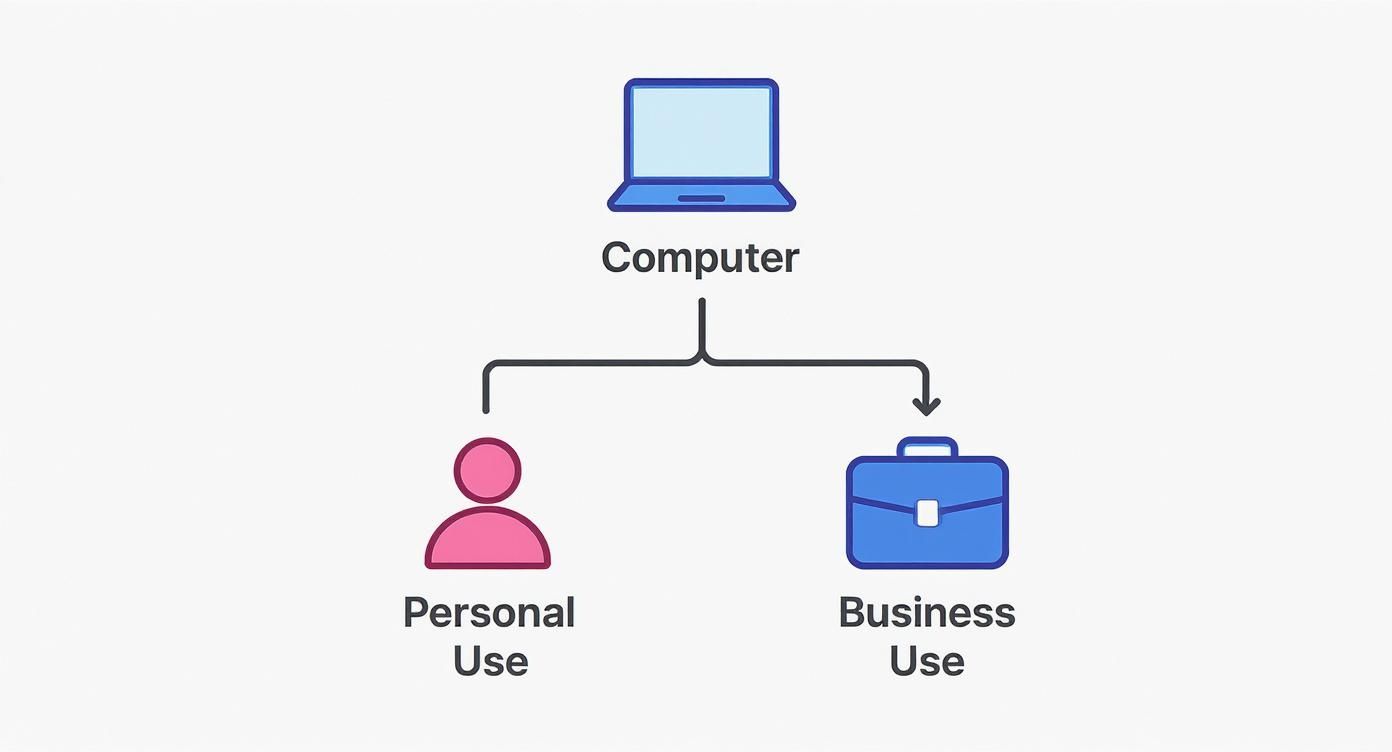
Whether you're posting family photos or running a full-blown business account, the desktop opens up a world of possibilities. For professionals, this often means diving into advanced scheduling and analytics, which is where dedicated platforms like PostSyncer can really make a difference.
Using the Official Instagram Website Uploader
If you just need a quick, no-fuss way to post to Instagram from your computer, the official website is your best friend. Gone are the days of clunky workarounds. Instagram rolled out native desktop posting back in 2021, and it’s now the most direct method available.
The process couldn't be simpler. Just head over to Instagram.com, log in, and look for the plus icon (+) in the menu on the left side of your screen. Clicking it pops open the "Create new post" window, and you're ready to go.
From Upload to Publish
Once the uploader is open, you can either drag and drop your photos and videos right into the window or click "Select from computer" to find them on your hard drive. This is my go-to for uploading high-res images directly from editing software like Lightroom without any quality loss. You can upload single images, videos, or even build a multi-file carousel post.
From there, you'll be guided through a few familiar steps:
- Cropping: You get the standard aspect ratio options: original, 1:1 (square), 4:5 (portrait), or 16:9 (widescreen).
- Filters and Adjustments: Slap on a classic Instagram filter or take control by manually tweaking things like brightness, contrast, and saturation.
- Final Details: This is where you write your caption, pop in some hashtags, tag other accounts, and add a location to boost your post's visibility. You can also dive into the advanced settings to turn off comments if needed.
Here’s a look at the Instagram home page, with the create button highlighted in the side menu. The interface is clean and feels a lot like the mobile app, so you'll feel right at home.
Knowing the Limitations
While it’s incredibly handy, the website uploader isn't a silver bullet. It's built for one thing: feed posts. And that comes with some serious limitations you need to be aware of.
The biggest drawback? You can't create or post Instagram Stories. Reels are also a mixed bag—you can upload a pre-edited Reel, but you won't get access to Instagram's trending audio library or any of the interactive stickers from your desktop.
This makes the official website uploader perfect for specific situations. It's the ideal tool when you have a polished photo or a pre-made carousel ready to go live without any drama. But if your strategy leans heavily on Stories, in-app Reel creation, or scheduling content ahead of time, you'll need to look at more capable tools.
Managing Content with Meta Business Suite
When you move past using Instagram as a casual hobby and start treating it like a professional operation, you quickly realize you need a more serious toolset. This is exactly where Meta Business Suite (what used to be called Creator Studio) comes into play. Think of it as the command center for anyone managing a business or creator account.
It’s Meta’s own free, all-in-one platform built to let you post on Instagram from your computer while keeping your Facebook Page management all in the same place. To get started, you'll need an Instagram business or creator account properly linked to its corresponding Facebook Page. Once you make that connection, you unlock a whole suite of features that blows the standard Instagram website out of the water. Just being able to handle both platforms from a single dashboard is a massive time-saver.
Planning and Scheduling Like a Pro
The absolute standout feature here is the content planner. It’s powerful. Instead of having to post in the moment, you can schedule everything—feed posts, Stories, and even Reels—weeks or sometimes months in advance. This lets you build out a thoughtful, cohesive content calendar and keep a consistent posting schedule, even when you're offline or on vacation.
The visual calendar view is especially useful. You get a bird's-eye view of your entire month's content, making it easy to drag and drop posts to different dates or spot any embarrassing gaps in your schedule. For anyone trying to execute a real social media strategy, that level of organization is non-negotiable.
Here’s a glimpse of the dashboard, where you can see options to create posts, Reels, and Stories, and get a feel for the content calendar.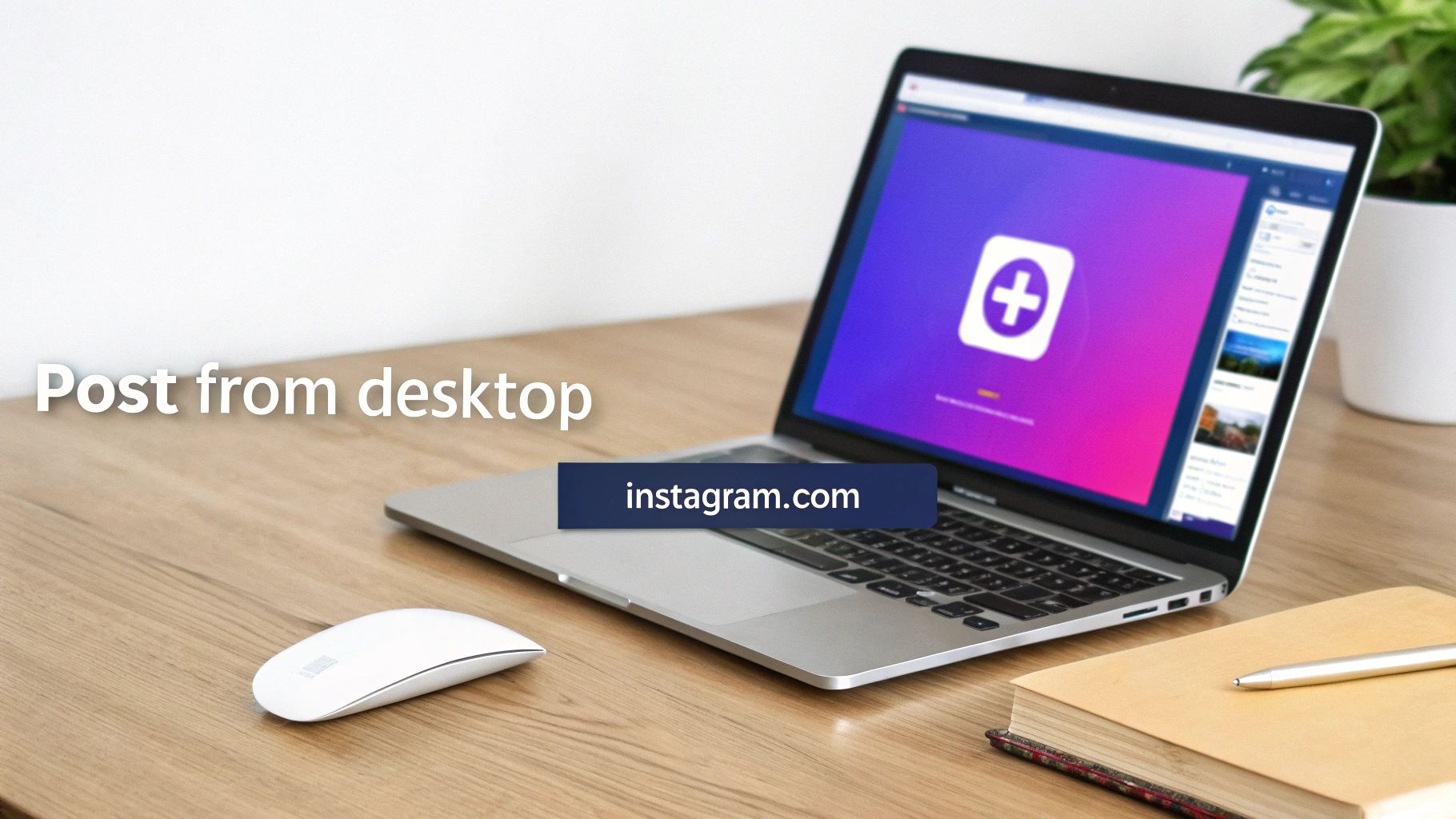
This integrated view is what it's all about—centralizing your content creation so you have a clear overview of everything planned across your platforms.
A Unified Workflow for Maximum Efficiency
But Meta Business Suite isn't just a scheduler; it's designed to create a completely unified workflow. You can draft a post for Instagram and, with a single click, tell it to publish on Facebook at the same time. The platform is even smart enough to let you tweak the caption for each network right there in the same creation window.
This cross-platform power also extends to community management. You can hop into one unified inbox to manage all your Instagram DMs and Facebook messages. And as you're prepping your visual assets, using an Instagram watermark remover can be a handy step to ensure your images look clean and professional before they go live.
Key Takeaway: The ability to schedule all content types (including Stories and Reels) from a desktop is the main reason professionals choose Meta Business Suite over the basic website uploader.
This move toward more capable desktop tools reflects a huge trend. In fact, Instagram's desktop website is now the fourth most visited on the entire internet, right behind giants like Google and YouTube. That incredible growth shows just how much users, especially marketers and creators, are now relying on their computers for serious content management.
Ultimately, if you’re managing a brand, running marketing campaigns, or working with a team, Meta Business Suite is the official, free solution built for you. It turns posting from your computer from a simple convenience into a real strategic advantage.
The Browser Inspect Trick for Mobile Emulation
Long before Instagram gave us a proper desktop uploader, this was the secret handshake for posting from a computer. It’s a clever little workaround that essentially tricks Instagram into thinking you're on a phone, which then reveals the mobile interface and that all-important upload button.
While you don't need it for standard feed posts anymore, this trick is still incredibly useful. Its main superpower today? Posting Stories directly from your desktop—a feature the main Instagram website still hasn't rolled out.
The magic happens inside your browser's Developer Tools. Don't let the name spook you; you won't be writing a single line of code. Think of it as a hidden settings menu that lets you change how a website looks and behaves. By flipping on the mobile view, you force Instagram to show you its phone-friendly layout.
Activating Mobile View in Your Browser
Getting this running takes just a few clicks, and the steps are virtually identical whether you're on Chrome, Safari, or Firefox. It’s a solid backup plan if the official uploader is acting up or if you just prefer the mobile app’s simple layout.
First, head over to Instagram.com and get logged in. Once you see your feed, right-click anywhere on the page and choose "Inspect" from the menu. A new panel will slide open, filled with what looks like complex code—you can safely ignore all of it.
Your eyes should be looking for a small icon that looks like a phone and a tablet sitting next to each other. This is the "Toggle Device Toolbar" button. Give that a click.
Instantly, the Instagram website will shrink down into a mobile-sized frame. If you don't see the + button at the bottom right away, just hit the refresh button on your browser. The familiar mobile navigation bar should pop up, ready for you to create a new post or Story.
This method is hands-down the best way to upload Stories from a desktop. You can drag and drop a vertical video or an image you've already edited on your computer, which is far simpler than the workflows on the main Instagram site or even in Meta Business Suite.
Pros and Cons of This Method
While it’s a fantastic trick to keep in your back pocket, it’s not a perfect system. Knowing its limits helps you decide when it’s the right tool for the job.
Here’s why you’ll love it:
- Post Stories Directly: This is the number one reason to use this method. It's one of the only ways to upload a Story from your computer without involving a third-party app.
- Works Everywhere: It functions on just about any modern browser on both Windows and Mac. No compatibility issues here.
- No Extra Software: You don’t have to install any browser extensions or sign up for another service. It's built right in.
On the flip side, the experience can feel a bit clunky. You won't find any scheduling options, and you can't add interactive Story stickers like polls, quizzes, or question boxes. It’s perfect for a quick, one-off upload, but it’s definitely not built for planning out a week’s worth of content.
Advanced Scheduling with Third-Party Tools
While Meta's own tools are solid, free options, they're really just the starting point. When you're ready to get serious about your Instagram strategy, third-party scheduling platforms are where the real power lies.
Tools like Later, Buffer, or Hootsuite are the secret weapons for social media managers, agencies, and creators who need to operate at peak efficiency. These platforms are built from the ground up to do more than just post content; they are complete command centers for your Instagram presence.
Instead of just uploading photos one by one, these tools let you visually plan your entire grid aesthetic. You can literally drag and drop scheduled posts on a calendar to see exactly how your feed will look, making it easy to build a cohesive and professional vibe before a single post goes live.
This visual planning feature alone is a game-changer for anyone trying to maintain a specific brand look from their desktop.
Why Third-Party Tools Are Worth It
The biggest win here is the sheer amount of time you get back. You can sit down, batch-create, and schedule weeks—or even a month—of content in a single session. This frees you from the daily grind of figuring out what to post, which is absolutely essential for maintaining the consistency that Instagram's algorithm loves.
Many of these platforms also offer clever features that solve common Instagram headaches. For example, some let you schedule the first comment on your post, which is the perfect spot to stash your hashtags. This keeps your caption clean and focused on your message without hurting your post's discoverability.
And it's not just about feed posts. If you're managing your entire Instagram presence from a desktop, knowing how to schedule Instagram Stories is another huge time-saver that these tools make possible.
But the real magic of these tools is in the analytics. They give you deep, actionable insights into your account’s performance, showing you everything from follower growth and engagement rates to the absolute best times to post for maximum reach.
This data-driven approach is what separates the pros from the amateurs. Just posting at your optimal time can boost engagement by 20-30%. Since the Instagram algorithm rewards posts that get immediate interaction, hitting those peak windows is non-negotiable for growth.
Advanced Features for Power Users
Beyond the basics, these platforms are packed with features you simply won't find anywhere else. They're built for people managing social media at scale.
- Hashtag Libraries: You can save and organize groups of your best-performing hashtags. No more typing them out manually for every single post.
- Multi-Account Management: This is a lifesaver for agencies. You can seamlessly switch between and manage dozens of Instagram accounts from one clean dashboard.
- Approval Workflows: Perfect for teams. A junior team member can draft a post, and it'll automatically be sent to a manager for approval before it's scheduled to go live.
These are the kinds of features that let you build a truly organized and scalable content strategy. For a closer look at how it all works, our guide on how to schedule Instagram posts breaks down how platforms like PostSyncer make this whole process incredibly simple.
Ultimately, investing in a third-party tool is an investment in your own efficiency, consistency, and strategic growth. It turns your computer into a true Instagram control center.
Common Questions About Desktop Posting
Once you start exploring how to post to Instagram from your computer, a few questions tend to pop up again and again. Let's tackle them head-on to clear up any confusion and get you posting with confidence.
A big one is whether you're limited in what you can post from a desktop. The short answer? It depends entirely on the method you pick. If you’re using the official Instagram website, you’re mostly stuck with feed posts—single images, carousels, and videos you've already edited.
But when you bring in a tool like Meta Business Suite, the game changes. It opens the door to scheduling almost everything, including Stories and Reels, making it a much more versatile option for serious creators and businesses.
Are Third-Party Tools Safe to Use?
It’s smart to be cautious about connecting apps to your Instagram account. But the good news is that reputable third-party schedulers are overwhelmingly safe to use.
These platforms tap into Instagram's official API (Application Programming Interface), which is the secure, approved way for them to talk to your account. This means they never need your password and can only perform actions that Instagram explicitly allows.
Key Takeaway: Stick to well-known, established scheduling tools. If an app asks for your Instagram password directly instead of sending you to an official login page, that’s a massive red flag.
When you use an authorized partner, you're playing by Instagram’s rules, not trying to get around them. This keeps your account secure and ensures you're following the platform's terms of service.
Does Posting from Desktop Affect Quality or Reach?
Another common worry is whether the algorithm penalizes desktop uploads. Based on all the data and my own experience, there is no evidence that posting from a computer hurts your post's reach or engagement one bit.
In fact, it can often be the opposite. Uploading directly from your desktop usually results in higher-quality content. You get to skip the file compression that often happens when you transfer a photo or video from your computer to your phone. A crisper, higher-resolution post is naturally more likely to grab attention and perform well.
The factors that actually move the needle on reach are:
- Content Quality: Is your post valuable, entertaining, or engaging for your specific audience?
- Caption and Hashtags: Did you write a compelling caption and use relevant hashtags to help people find it?
- Posting Time: Are you publishing when your followers are most active and ready to interact?
That last point is where desktop scheduling tools really prove their worth. Many provide analytics to help you pinpoint the best times to post. For a deeper dive, check out our guide on finding the best times to post on Instagram.
What Is the Best Method for Me?
Choosing the right tool comes down to your personal workflow and goals. There’s no single "best" answer for everyone, but this quick breakdown should help you decide.
| Scenario | Recommended Method | Why It Works |
|---|---|---|
| Quick, one-off photo upload | Instagram Website | It's the fastest, most direct way to post a single image or carousel without extra tools. |
| Managing a business account | Meta Business Suite | It offers free, powerful scheduling for all content types and integrates with Facebook. |
| Needing to post Stories from PC | Browser Inspect Trick | This is the only official-adjacent way to upload a Story directly from a computer. |
| Juggling multiple accounts | Third-Party Scheduler | Unlocks advanced features like visual grid planning, analytics, and bulk uploads for maximum efficiency. |
Ultimately, understanding what each option does best allows you to build a system that saves you time and helps you create better content. It's all about working smarter, not harder.
Ready to take control of your social media workflow? PostSyncer provides all the advanced scheduling, analytics, and collaboration tools you need to manage your Instagram presence effortlessly from your computer. Start your free trial today and see the difference.